When should you migrate an Access database to SQL Server?
A mid-size file takes 20-25 days, with a one-weekend cutover and a written rollback plan.


The file is called Orders_system_v14_FINAL.accdb and it weighs 1.7 GB. Twelve people use it on the same network, and for two months something new has been happening: on Monday morning someone opens a form and Access says the database "needs to be compacted and repaired". The owner of a window-manufacturing company in northern Italy wrote me one line: "How long to put this on SQL Server and keep our forms?"
The answer is precise, and it is neither "a week" nor "throw it all away". Moving Access data to SQL Server can be done in an orderly way, with one weekend of cutover, and it removes three fears at once: the 2 GB limit, file corruption and remote access. It also has traps that make the system slower instead of faster, and you meet most of them the Monday after.
This guide covers when it pays off, the four possible routes with costs, the inventory to run first, the step by step with SQL Server Migration Assistant, type mapping, relinking the forms, why queries get slow and how to fix them, permissions, the cutover weekend and the mistakes I see repeated. I have been writing software since 1999 and pulled data out of more Access files than I can count. If your real question is whether to replace Access entirely, that is a different discussion: replacing Access with a management system.
What does migrating an Access database to SQL Server mean?
It means moving tables and data into the SQL Server engine while Access can stay as the interface: forms, reports and macros keep working by linking to the tables on the server.
An .accdb file holds two layers: the data engine (tables, indexes, relations, queries) and the application (forms, reports, macros, VBA). In one shared file, twelve people open the same copy of both through the network. That is why it corrupts: a dropped cable, a laptop going to sleep or a VPN failing mid-write is enough to leave pages inconsistent.
The migration separates the layers. Data goes to SQL Server. The application stays in a small Access file that each user keeps locally. This front-end and back-end split has been Microsoft's recommendation for over twenty years, and it changes everything: the file that used to corrupt no longer exists, because the server writes the data, not twelve computers.
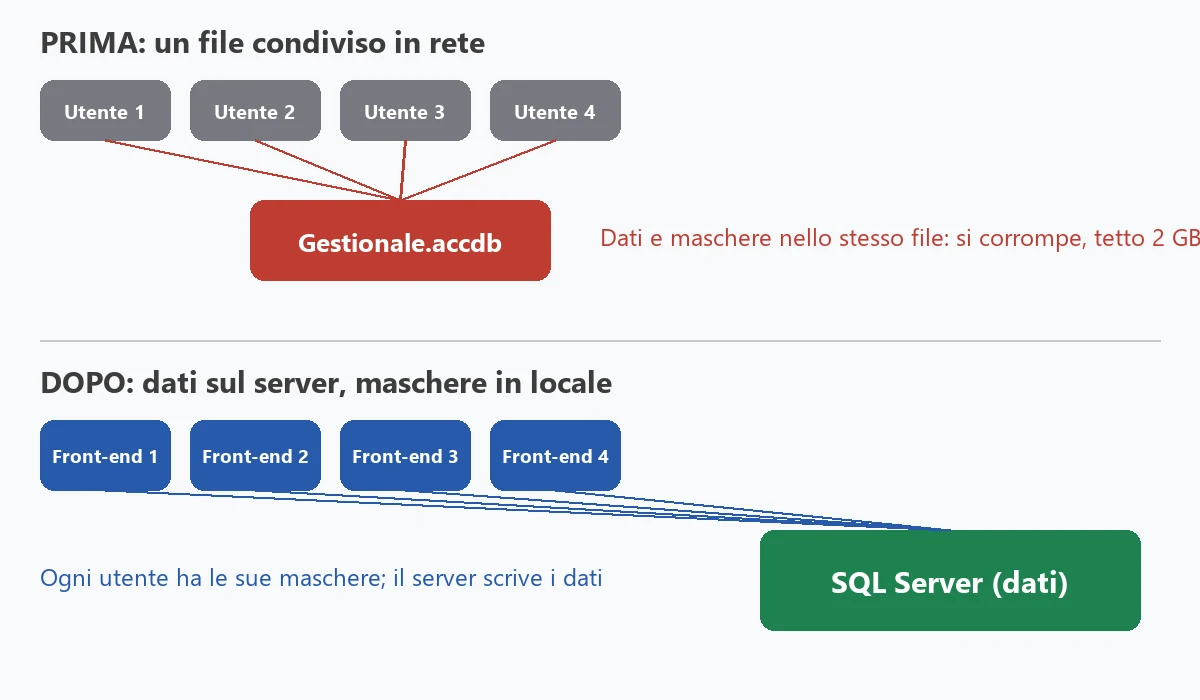
If done well, almost nothing changes for people working every day. If done badly, the system becomes mysteriously slow. The difference sits in four places: data types, keys, queries and VBA code.
When does moving from Access to SQL Server pay off?
When the file nears 2 GB, corrupts or slows down with several users, when people need to work outside the office, or when data must be protected and backed up regularly.
- File size. Access caps at 2 GB. From 1.2 GB you are close to the wall; one bad compaction and the file will not open.
- Corruption. Once a year is normal. Every month, or records lost after repair, means the file asks to be moved.
- Users. Access copes with five or six writers, struggles up to ten or fifteen.
- Remote work. Opening an Access file over a slow VPN is the surest way to corrupt it. With SQL Server the traffic is small requests and answers.
- Security and backups. A shared folder has permissions on the folder, not on the data. SQL Server gives per-table permissions and point-in-time restore.
When it does not pay off: three users, an 80 MB file that never failed, no remote need. Spend those days on an automatic backup and documentation. A useful number: twelve people losing fifteen minutes a day for 220 working days is 660 hours a year, almost 20,000 euro at 30 euro an hour. With that figure on the table the conversation changes tone.
Which routes exist and what do they cost?
Four: keep Access with basic protections, move the data to SQL Server and keep the forms, build a new program on SQL Server, or replace everything with a packaged system.
- A, harden Access: 3-4 days, about 2,000 euro, buys 1-2 years, does not remove the 2 GB cap.
- B, SQL Server with Access forms (this guide): 20-25 days, about 12,000-15,000 euro, buys 5-8 years for the data.
- C, new program on SQL Server: 120-300 days, 70,000-180,000 euro, independent from Access, higher risk. It follows the strangler fig pattern.
- D, packaged system: 20,000-90,000 euro over two years, see replacing Access with a management system.
These are orders of magnitude computed with a reference rate of 600 euro a day, a working assumption and not my price list. A real quote needs your file's numbers.
What do you check before migrating?
You run an inventory: tables, relations, queries, forms, reports, macros and VBA, noting which objects are really used. Ninety percent of Monday-after problems come from something the inventory would have shown.
- Tables and size: three tables are usually ninety percent of the file.
- Primary keys: tables without one cannot be updated from forms after the move.
- Relations: the ones that exist only in someone's head must be found and declared.
- Queries that call VBA functions: they are the ones that stall.
- VBA that opens recordsets, concatenates SQL, or uses
DLookupinside loops. - External links: Excel sheets, other Access files, ODBC, attachment folders.
Access has a hidden system table, MSysObjects, listing every object:
SELECT Type, Count(*) AS HowMany
FROM MSysObjects
WHERE Name NOT LIKE "MSys*" AND Name NOT LIKE "~*"
GROUP BY Type;
In files with ten years of history a third of the objects are unused. Ask users, or log form opens for two weeks, and archive what is never opened instead of migrating it.
How do you migrate with SQL Server Migration Assistant?
SSMA for Access is Microsoft's free tool that reads the Access file, creates tables on SQL Server, copies the data and converts queries to views. The sequence is fixed: connect, convert, load, migrate, verify.
- Work on a compacted and repaired copy, never the original.
- Create the empty database and a dedicated login.
- Create the SSMA project and connect both sides.
- Run "Create Report" before converting: it is your list of troubles.
- Convert the schema, load it, then migrate the data (a 1.7 GB file takes 10-30 minutes on an internal network).
- Link the tables back in Access.
- Verify: row counts and sums per table, both sides, to the cent.
SELECT COUNT_BIG(*) AS Rows_,
       SUM(Amount)  AS TotalAmount,
       MIN(OrderDate) AS FirstDate,
       MAX(OrderDate) AS LastDate
FROM dbo.OrderLines;
For huge tables, dirty data or structural changes, write the migration by hand: read Access with System.Data.OleDb and write with SqlBulkCopy.
using System.Data.OleDb;
using Microsoft.Data.SqlClient;

await using var source = new OleDbConnection(
    "Provider=Microsoft.ACE.OLEDB.12.0;Data Source=C:\\Migration\\Orders.accdb;");
await source.OpenAsync();

await using var command = new OleDbCommand(
    "SELECT OrderId, CustomerId, OrderDate, Amount FROM Orders", source);
await using var reader = await command.ExecuteReaderAsync();

await using var target = new SqlConnection(
    "Server=srv-sql01;Database=Orders;Integrated Security=true;TrustServerCertificate=true");
await target.OpenAsync();

using var copy = new SqlBulkCopy(target)
{
    DestinationTableName = "dbo.Orders",
    BatchSize = 10_000,
    BulkCopyTimeout = 0
};
await copy.WriteToServerAsync(reader);
How do data types map between Access and SQL Server?
Every Access type has a SQL Server counterpart, but some automatic choices are wrong, mainly Yes/No fields, dates and long text.
- Short text becomes
nvarchar(n)with the real length, not 255 by habit. - Long text becomes
nvarchar(max), neverntext. - Decimals and Currency become
decimal(18,2). - Date/Time becomes
datetime2(0)ordate. - Yes/No becomes
bit NOT NULL DEFAULT 0: a nullable bit gives forms a three-state value they cannot handle. - AutoNumber becomes
int IDENTITY.
Add a rowversion column to every table you edit from forms. Without it, Access can raise "this record has been changed by another user" even when you are alone:
ALTER TABLE dbo.Customers ADD RowVer rowversion NOT NULL;
ALTER TABLE dbo.Orders    ADD RowVer rowversion NOT NULL;
If linked tables show #Deleted on every row, the usual causes are the missing primary key, a nullable bit, or the missing rowversion.
Why can the system become slower after migration?
Because Access downloads whole tables to run queries that SQL Server would solve instantly: VBA functions inside queries, joins between local and remote tables, filters that cannot be sent to the server.
With 400,000 order rows, a query that took half a second can take forty. The cures, in order: views on the server, pass-through queries, stored procedures for bulk operations, and forms that load only the records they need. Add indexes on filter columns, which Access hid for you:
CREATE NONCLUSTERED INDEX IX_Orders_OrderDate
ON dbo.Orders (OrderDate)
INCLUDE (CustomerId, Amount);
Measure, do not guess: Query Store on the server shows the slowest queries. The usual VBA culprits are DLookup, DCount and DSum inside loops and recordsets opened on whole tables.
How do you handle permissions, security and backups?
Give each person or group only the permissions needed, table by table, and back up with full, differential and log backups.
CREATE ROLE OrdersRole;
GRANT SELECT, INSERT, UPDATE ON SCHEMA::dbo TO OrdersRole;
DENY  DELETE ON dbo.Orders TO OrdersRole;
A minimal plan: a full backup every night, a differential every four hours, a log backup every fifteen minutes. If someone deletes a month of orders at 14:37 you restore to 14:36. And a backup never restored is not a backup: restore the latest one on a test server every quarter. Use integrated authentication so no password lives in the front-end, and install the Microsoft ODBC Driver 18 on every client.
How do you do the cutover without stopping the company?
In one weekend, with a dress rehearsal the week before, a data freeze and a written rollback plan.
- Rehearsal a week earlier: full migration on a test server, two expert users work a whole day, you time every step.
- Freeze on Friday evening: everyone leaves, last copy taken, the original made read-only, final migration run.
- Testing on Saturday: compare counts, run the main flows, distribute the new front-end. Monday you work.
The original stays read-only for at least a month. If a serious problem appears Monday and is not solved within an hour, you reopen the old file, re-enter the day's records and try again the next weekend. Someone must be on the floor the first week, because users cannot tell a migration error from their own mistake.
How much does it cost and how long does it take?
For a file with about forty tables and a hundred queries: 20-25 person-days, roughly 12,000-15,000 euro at a reference rate of 600 euro a day.
- Small: 15 tables, 25 queries, 4 users, 120 MB: 6-8 days, about 4,000-5,000 euro.
- Medium: 40 tables, 110 queries, 12 users, 1.7 GB, 4,000 lines of VBA: 20-25 days, about 12,000-15,000 euro.
- Large: 120 tables, 400 queries, 30 users, 15,000 lines of VBA: 60-90 days, 36,000-54,000 euro, and route C deserves a comparison.
Figures include inventory, migration, query fixes, testing, cutover and a week of support; they exclude hardware or server fees. The price rises with VBA that builds SQL strings, dirty data, forgotten integrations, and no internal person to validate numbers. It falls with an ordered file and two hours a day from someone who knows the process. See also the real cost of legacy software.
Which mistakes repeat most often?
- Running SSMA on the production file instead of a copy.
- Accepting the automatic type mapping.
- Forgetting primary keys and the rowversion column.
- Ignoring indexes: the small Access file hid every missing one.
- Leaving the password inside the front-end.
- Sharing one front-end among all users, which brings back corruption.
- Writing nothing down, and not timing the five most frequent operations before and after.
The window company did route B in twenty-two days. The 1.7 GB file became a 640 MB database. Three reports that took forty seconds to two minutes now answer in under two seconds, after turning them into views. The owner spent about 13,000 euro and bought time: a year later he rewrote the quotes module in .NET and left the other forms in Access.
And after SQL Server, what happens to Access?
It can stay as the interface for years, or be replaced one module at a time with a .NET program on the same database. Keeping it is rational while twelve people use it and it works, as long as you account for the dependency on Windows and Office. Replacing it gradually is the safest path for software that cannot stop, the same approach I use for much older systems, as in migrating from VB6 to .NET, with data access via Dapper or Entity Framework Core.
- If the file passes 1.2 GB or corrupts several times a year, move the data to SQL Server.
- Keep the Access forms while they work, and measure before and after.
- Inventory first: keys, relations, queries with VBA, external links.
- The cutover is a weekend with a rehearsal and a written rollback.
- With over thirty users, more than 15,000 lines of VBA or data nobody can verify, ask for help before starting.
If you have an Access file that grows, corrupts or depends on one person, send me four numbers (users, file size, number of queries, minutes lost per user per day) and in half an hour I will tell you which of the four routes fits, what it costs and the first step. For a wider system to modernize, the method is on the legacy software modernization page.
Frequently asked questions
A file with about forty tables and a hundred queries takes roughly 20-25 person-days, 12,000-15,000 euro at a reference rate of 600 euro a day. A small file costs 4,000-5,000 euro. Cost depends on queries and VBA code more than on table count.
Yes. Tables become linked over ODBC to the server and forms, reports and macros keep working. Slow queries and VBA code that pulls whole tables need fixing.
Almost always for small companies: it is free and goes up to 10 GB per database. An Access file caps at 2 GB, so the data fits with room to spare.
Usually a missing primary key, a Yes/No column that allows nulls, or no rowversion column. Fix the table definition on the server.
One weekend: a dress rehearsal the week before, data freeze on Friday evening, testing on Saturday, live on Monday. The original file stays read-only for a month as a rollback plan.
For tidy files, yes. For very large tables, dirty data or structural changes, a hand-written migration with SqlBulkCopy and row-count checks is better.
Not necessarily. Keep it while it works, or replace one module at a time with a .NET program on the same database.
Leave your details in the form below